Composite TL Calculator#
Getting Started#
There are two ways to open the Composite TL Calculator.
To open the calculator without adding transmission loss data from INSUL, click the  button on the INSUL Toolbar. Composite TL Calculator will start and the following window will appear:

To open the calculator and add transmission loss data from INSUL, click the Add data from Insul button  . The button is available on the Panel 1, Panel 2, Wall, Ceiling and Double/Triple Glazing tabs. When the button is clicked INSUL will add the currently modelled transmission loss data to the next available line in the Composite TL Calculator. Before the calculator window is shown you will be prompted to enter the area for the selected data in a dialog box:
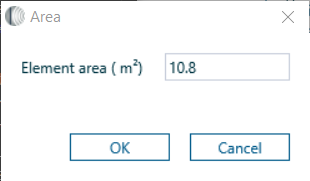
The area that is entered into the dialog will be put into the Area column of the calculator. When the dialog is closed Composite TL Calculator will open.
Adding Data to the Calculator#
There are two ways to add data to the calculator:
- Data can be added automatically from INSUL by clicking the Add data from Insul button from the INSUL main page. This process is described above.
- Data can also be entered directly into the Composite TL Calculator. On either the Third Octave Sheet or the Octave Sheet, click a cell to begin entering data.
STC/Rw Calculations#
STC or Rw calculations are carried out automatically for each row of data in the Composite TL Calculator. Either STC values or Rw values may be selected.
- When STC is selected, the associated OITC value is also calculated.
- When Rw is selected, the associated C and Ctr values are also calculated.
The single figure indices for each element are displayed in the right-hand column of the 1/3 Octave or 1/1 Octave tables. The single figure indices for the Composite TL are displayed in the box above the chart:
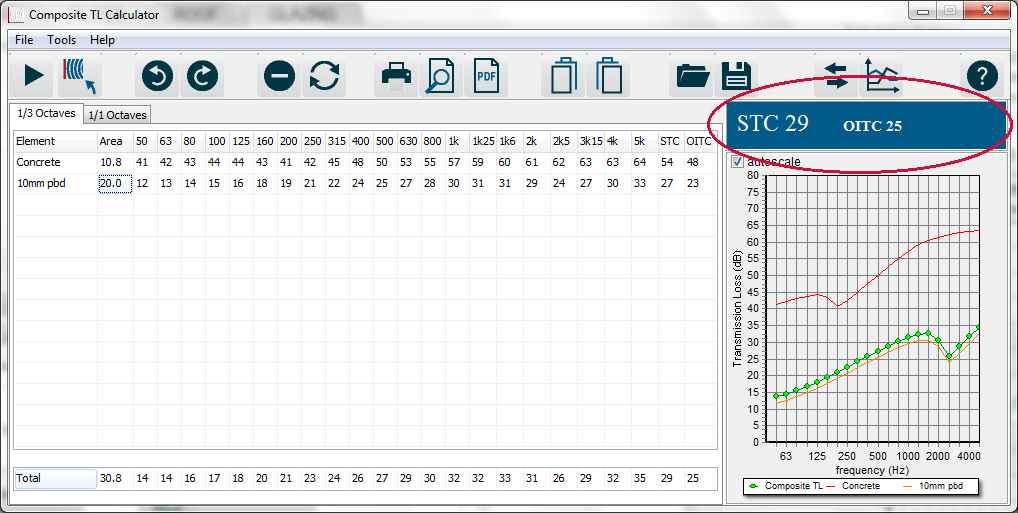
The frequency range for the C and Ctr corrections may be selected from the Settings window. From the Tools menu, select: Tools > Settings...
Getting Back to INSUL#
To return to INSUL from the Composite TL Calculator window either:
- Click the
 button
 - Press F2
- From the Tools menu select: Tools > Return to Insul
Any existing data in the Composite TL Calculator window will be retained.