Installation Notes#
Important
Before installing INSUL close any open applications and log on as a user with sufficient access rights to install programs. This normally means having Administrator rights.
Installing the licence key#
A Sentinel® USB licence key is provided with each purchased copy of INSUL. This key is needed to run the software.
- To use the key, plug it into a spare USB port on the computer.
- In most cases, if the computer is connected to the Internet then Windows will automatically locate and install the correct drivers for the Sentinel® key. This will take perhaps 30 seconds to a minute. If completed successfully a message will appear on screen that the drivers are installed. The LED light at the tip of the USB key will light up.
- If the correct drivers are not automatically installed, it is recommended to download and run the file HASPUserSetup.exe from the INSUL website. This will install the drivers for the Sentinel® USB key. The LED light at the tip of the USB key will light up.
Installing INSUL#
- Visit the INSUL website and download the setup file on the Download page. Run the file "Setup.exe" to install INSUL.
- Read the instructions on the Welcome page and click the next button.
- Read the Software License Agreement and if you accept the terms of the licence, click "I accept the terms in the licence agreement", then click the next button.
- When the installation is complete, an option is provided to show the INSUL release notes in the Readme Information file. Tick the checkbox to show the file.
- Click Finish to exit the installation Wizard.
- INSUL can now be run from the Windows "Start" menu.
First use#
The first time INSUL is used, a prompt will appear allowing one or more Regions to be selected. Selecting a different region changes the list of materials available for calculations.
It is recommended that only one region be selected initially to avoid being overwhelmed by the number of materials. Region settings can be updated at any time from the Settings menu.
Updates#
INSUL is updated from time to time with new releases. These are known by their release number, for instance, version 8.0.4 is release 4 of version 8.0.
- To check for updates, open the About form from the Help menu: Help > About or by clicking the
 button
 - Click the "Check for updates" button on the About form, or check the tick box on that form "automatically check for updates".
- Updates are also available from the INSUL website
User access#
Normally INSUL will be installed on a computer by a user and run just by that user.
If several people wish to use INSUL on the same computer some extra setup may be required. See Multiple users for more information.
Update Key Version#
New versions of INSUL are released from time to time. Updates to new versions are free for 3 months from the date of purchase.
Updating INSUL Keys
From INSUL Version 6.3, USB keys can be upgraded remotely (without needing to be returned to the developer or distributor).
To upgrade a key remotely, a 'key file' is generated from INSUL. The 'key file' must be sent to the developer who generates a 'key update' file which is sent back to the client who can then use the file in INSUL to update their USB key.
The key can be upgraded either to a new version or to operate other software developed by Marshall Day Acoustics.
Step by step
- Start INSUL and then from the File menu choose: File > Key Update
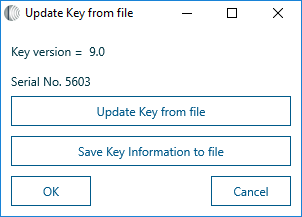
-
Click on the "Save Key Information to file" and save the file (*.c2v) that this produces to a convenient location and then email it to the Distributor or the Developer insul@insul.co.nz.
-
An update file will be emailed to you that can be used with INSUL to update the key to the new version using the "update Key from file" button. Browse to the update file sent to you by the developer or the distributor. This will be named something like "0101key1300.v2c". Open this, INSUL will then update the key and display a message that the key has been updated successfully. The key should now have the new information loaded and should unlock the new version of INSUL or Zorba.