Illustration#
The INSUL Illustration is a central component of the INSUL window. It provides an image of the current construction model.
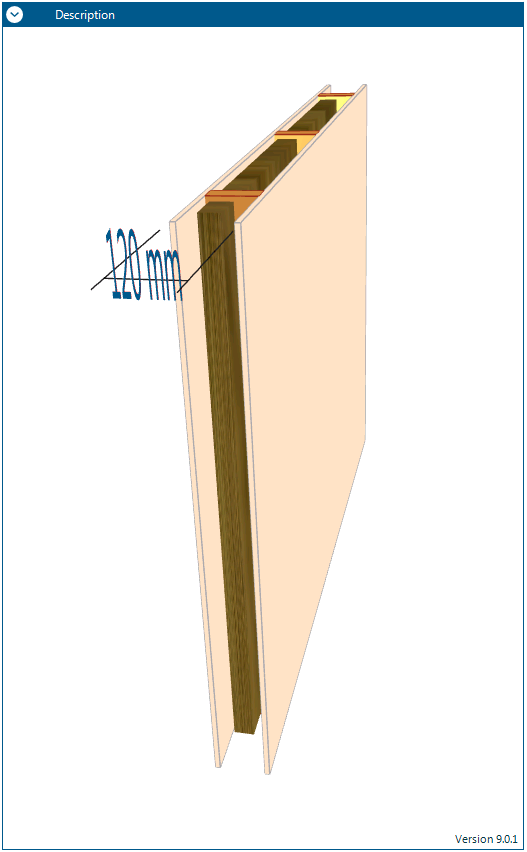
The view of the illustration can be changed:
- Zoom: Scroll the mouse wheel to zoom in and out of the illustration
- Rotate: Left-click hold and drag the mouse to rotate the illustration
- Tracking: Shift + left-click hold and drag the mouse to track along the illustration
Opacity#
The opacity or transparency of the illustration can be adjusted using the Opacity Slide beneath the INSUL Construction tabs.

- Slide to the left to increase the opacity
- Slide to the right to decrease the opacity
Material Properties#
Click on any object in the INSUL Illustration to access the properties for that object.
Description#
The Description Bar provides an automatically generated description of the components of the current INSUL model. The description text can be shown or hidden as required.
The location of the Description Bar can be moved to the top or bottom of the illustration. Change the position from the View menu by selecting: View > Description > Move.