Composite TL Calculator Settings#
1/3 Octave and 1/1 Octave#
Single octave band (1/1) and one-third octave band (1/3) tabs are available in the Composite TL Calculator.

- Transmission loss data added to the Composite TL Calculator from INSUL will be added in 1/3 octave bands.
- Data added to the 1/3 Octave tab is converted by the Composite TL Calculator into octave band data which is displayed on the 1/1 Octave tab.
-
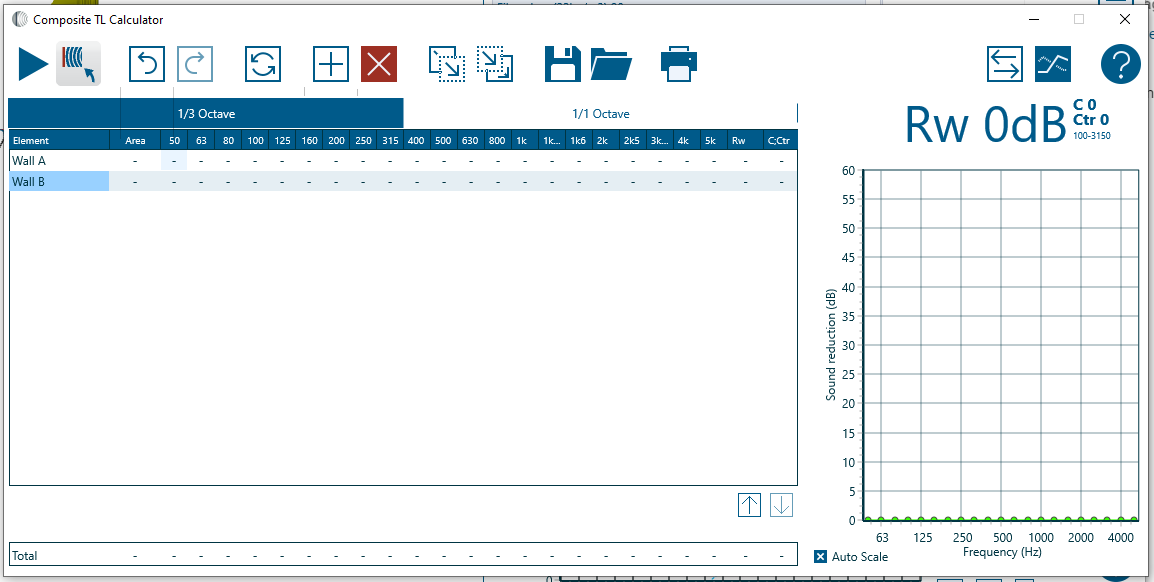
Data added to the 1/1 Octave tab cannot be converted into 1/3 octave data. When values are manually entered into the 1/1 Octave tab, the 1/3 Octave tab will be zeroed and will appear as follows:
Toolbar#
The tool bar offers quick access to the most common functions used in the Composite TL Calculator.
Item |
Notes |
|
|---|---|---|
 |
Calculate | Refresh to calculation and update results |
 |
Return to INSUL | Minimise the Composite TL Calculator window |
  |
Undo/Redo | Undo or Redo an action |
 |
Reset | Reset the Composite TL Calculator and clear all data |
 |
Insert row | Add a new row to the calculation |
 |
Delete row | The row which contains the selected cell will be deleted |
 |
Copy | Copy the composite TL spectrum to the clipboard |
 |
Paste | Paste data from the clipboard into the selected cell(s) |
 |
Save | Save the calculation to a *.cns file |
 |
Open | Open a *.cns file |
 |
Create a printout of the calculation | |
 |
Toggle criteria | Toggle between STC and Rw single figure indices |
 |
Toggle plot | Show or hide the Element TL spectra on the chart |
Copy Elements#
To copy a single cell or a range of selected cells in the Element table, select the required cells and press Ctrl+c
This will copy the selected cell(s) to the Clipboard.