Examples#
A Simple Example#
Let's start with a very simple example by predicting the transmission loss of a single sheet of gypsum plasterboard.
-
From the INSUL Construction tabs, select the Wall tab. This will provide a calculation of airborne sound reduction.
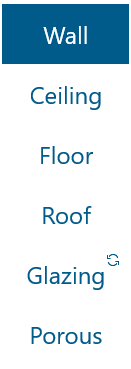
The Ceiling tab also provides a calculation of airborne sound reduction. The Floor tab provides a calculation of impact sound level, the Roof tab calculates rainfall noise and the Glazing tab provides a calculation of airborne sound reduction for different glazing systems.
-
From the INSUL Panel tabs, Double is selected by default when INSUL starts up. This provides a calculation for a construction with one air cavity.

To model the sound reduction through a single panel, select the Single tab.

With the Single tab selected, INSUL presents options to adjust the model in greater detail. In the current example, the Panel 1 tab provides an option for the model to include up to six different layers, each with a different material.
-
Layer 1 tab is the selected layer by default. On Layer 1, material can be selected from the Products list.
INSUL includes many hundreds of products. Every layer tab includes options to filter products by Category and Manufacturer using the filter tools next to the Products list. The Products list can also be searched using keywords from the search box above the Products list.
-
For this example, sort by Category by selecting Gypsum. The items in the Products list will automatically update. The specific items shown in the Products list depend on the Region options selected from the Settings menu. But don't worry about that for now.
-
Select any entry in the Products list. The INSUL Illustration will show an image of the selected material.
-
The Thickness box will show the material's default thickness. Change the thickness by typing a new value into the Thickness box. The INSUL Illustration will update to show the new thickness.
-
Increase or decrease the number of layers of the selected material using the Quantity control. Either type a new quantity or use the < and > controls. The INSUL Illustration will update to show the new number of layers.
-
The sound transmission loss or sound reduction is calculated each time you make a change, and the results are updated and displayed. The Rw or STC value is displayed above the INSUL Illustration along with any modifying indices. A table of octave band values is also presented to the left of the Rw/STC value.

-
For a single layer of gypsum plasterboard, the predicted result will be about STC 25 to 28 or Rw 25 to 28. Click on the result value to toggle between Rw and STC values.
-
Results are also presented graphically on the INSUL Chart. 1/3 octave band values are displayed in the chart, which is located at the bottom right-hand corner of the INSUL window.
-
A single panel can comprise more than one material. In practice, this is achieved by fixing materials together by screws or daubs of glue. In INSUL, materials can be added to a panel as different layers, using the Layer 1 tab through to the Layer 6 tab.
Getting Fancier#
Now let's develop a model which includes a wall frame and panels on both sides of the frame.
-
From the INSUL Panel tabs, select Double to set up a calculation for a construction with an air cavity.
-
With the Double tab selected, define materials for each side of the wall, using the Panel 1 and Panel 2 tabs.
-
To define the properties for the frame, select the Frame 1 tab and review the options for frame type and cavity width:

-
From the Frame Type list select Timber Stud. The Cavity Width and Stud Spacing can be updated from the edit boxes.
-
The cavity can be modelled with or without absorption by selecting materials from the Absorption Product list.

-
Now let's look at the effect of a different frame type. From the Double > Frame 1 tab, in the Frame Type list change the selection from Timber Stud to Staggered Stud. The INSUL model will update to show the predicted performance using a staggered stud frame. The Comparison spectra tool can be used to highlight the change in frame type on the INSUL chart.
Reset#

You can reset the construction with the reset button.