Materials Editor#
INSUL provides an extensive selection of common materials and existing products which can be included in an INSUL model. The Materials Editor also lets users to create their own custom materials which can be used in addition to the existing materials and products available.
The Materials Editor provides the ability to create and edit custom lists for:
- Insulation materials
- Profiles
- Glazing
- Floor covers
- Absorptive materials
- Cores
- Studs
Frames or Studs?
The Materials Editor can be used to view and create Studs.
In INSUL, Studs provide a quick option for setting the dimensions of a timber or steel stud frame. The list of available studs can be viewed in the main INSUL window from a pop-up menu.

When a new stud is selected from the pop-up menu, the width and depth of the stud in the INSUL model are updated.
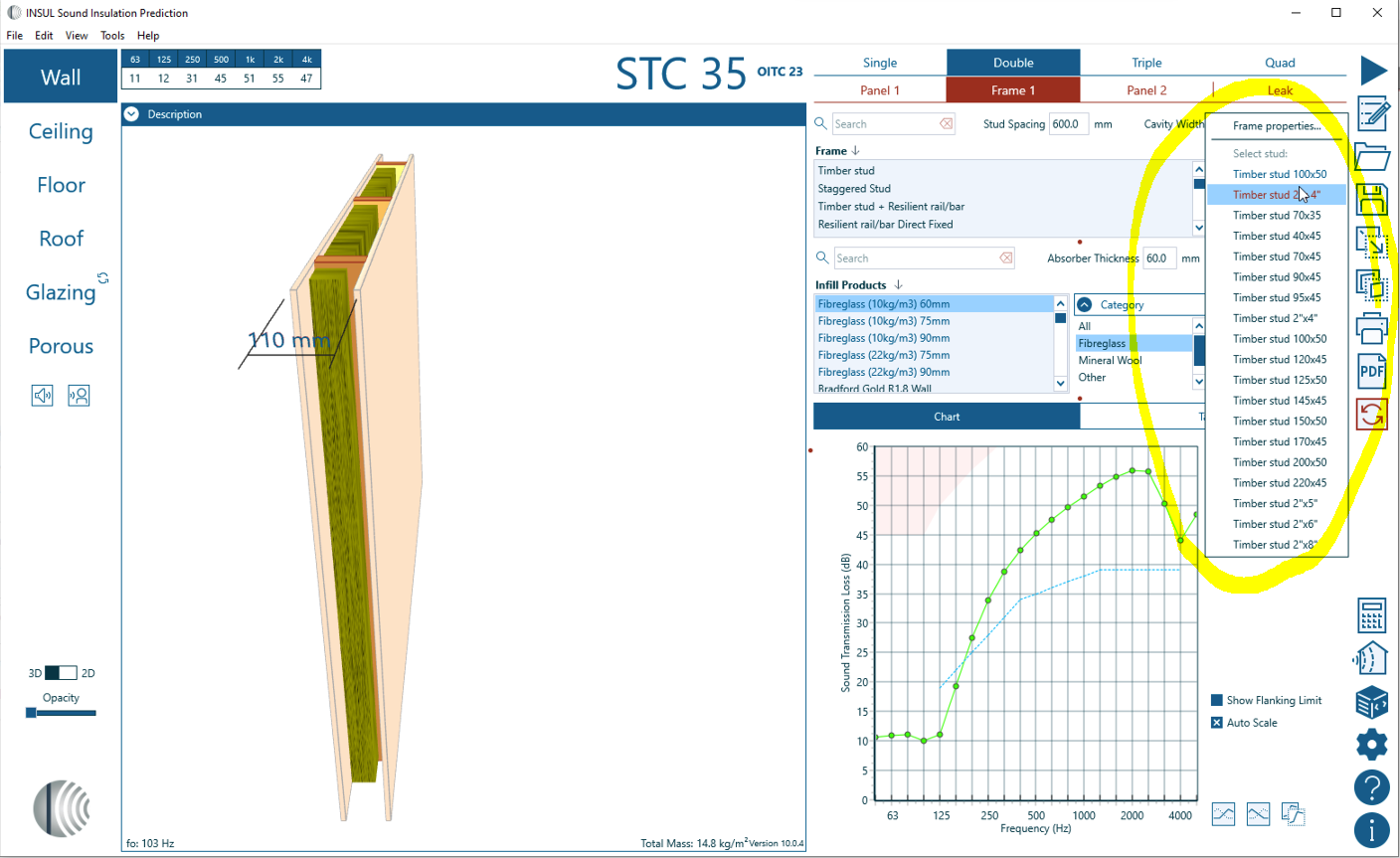
Importantly, the Materials Editor does not provide an option for viewing or creating Frames.
This is because each new frame that is added to INSUL is assessed and validated by the INSUL development team to confirm if the INSUL predictions are in sufficient agreement with available laboratory sound insulation data.
INSUL and Custom lists#
Materials which are included in INSUL by default are part of the INSUL lists, whereas new materials created using the Materials Editor are added to the Custom lists.
INSUL lists
The INSUL lists contain all the materials and products which are included in INSUL's built-in database. These lists are maintained by INSUL developers, and so items on these lists cannot be edited or deleted. Updates for INSUL may provide changes to existing materials as well as add new materials and producxts.
Custom lists
Customised material lists can be created in INSUL using the Materials Editor to store information for specific materials and arrangements. Materials added to this list will be available to select when modelling in INSUL.
The customised files are saved separately from the INSUL lists and can be backed up, restored and exported or imported using the Materials Editor. Custom materials show in blue font in the lists on the main INSUL window to distinguish them from the INSUL lists.

There are separate INSUL and User/Custom lists for:
- Insulation materials
- Profiles
- Glazing
- Floor covers
- Absorptive materials
- Cores
- Studs
Import and Export#
Import and export custom materials, allowing them to be shared by other INSUL users, as well as saved and backed up.
It is possible to export a single item or an entire list of custom materials. Custom materials are saved as .xml files.
 Click the Import/Export button to show a pop-up menu with three options.
Option |
Action |
|---|---|
| Import | Browse for an existing *.xml file. This will add new items to the relevant Custom list |
| Export item... | Exports a single custom item and saves it as an *.xml file at a chosen location |
| Export list... | Exports the list of items such as all custom materials, glazing, absorption etc. |
File Locations#
The INSUL and Custom lists are saved locally. The user must have read/write access to these folder locations.
INSUL lists
By default, the INSUL lists are saved at the following locations.
Windows
C:\ProgramData\Marshall Day Acoustics\Insul100\Materials.
macOS
../Insul100.app/Contents/Resources/Materials
Custom lists
By default, the User lists are saved at the following locations.
Windows
C:\Users\[User name]\AppData\Roaming\Marshall Day Acoustics\Insul100\materials
where [User name] is the username for the active Windows session.
macOS
/Users/[User name]/.Marshall Day Acoustics/Insul100/Materials
where [User name] is the username for the active mac session.
The location of Custom lists can be changed from the Settings window. Select Materials > List Files.
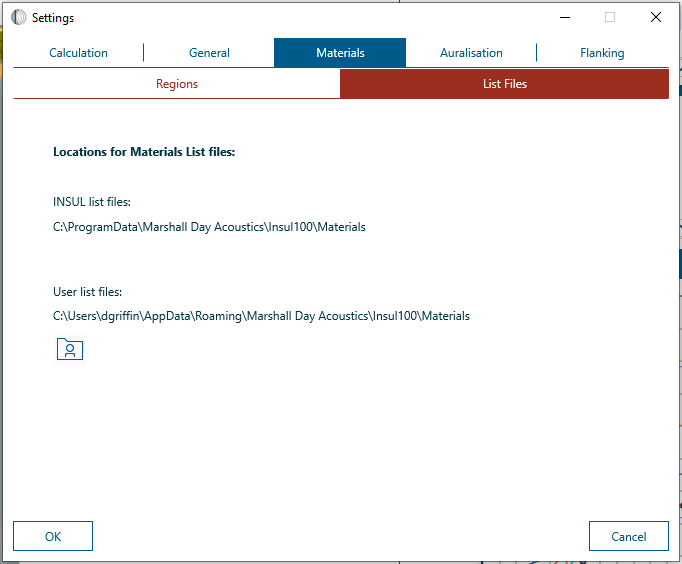
 Click on the Open button and follow the prompts to update the location.