Share#
INSUL includes a range of methods to copy information from an INSUL model so that it may be used in other windows or apps.
INSUL also provides options for sharing some types of information between different parts of the same INSUL model.
Sharing Panels and Layers#
Panels and Layers can be shared using the Share button on a Panel tab.
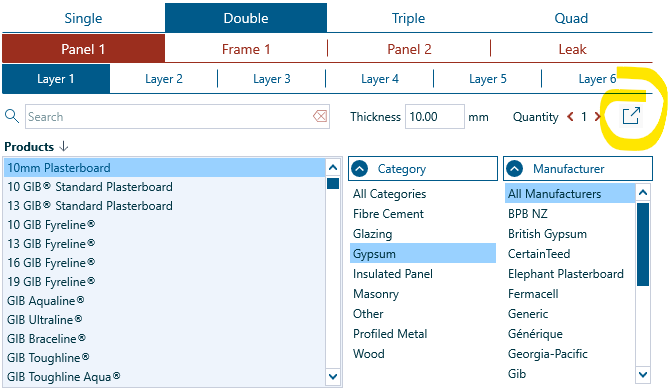
This will open the Share menu:
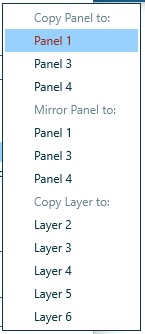
Where a panel or layer is shared, all relevant properties are shared including name, thickness, density, Youngs modulus etc.
There are three different ways to share either panels or layers which are summarised in the table below.
Item |
Action |
|---|---|
| Copy Panel to | Share a panel arrangement to a different panel. For example, in a Double model, Panel 1 could be shared to Panel 2. This would mean that Panel 1 > Layer 1 would be copied to Panel 2 > Layer 1, Panel 1 > Layer 2 would be shared to Panel 2 > Layer 2 and so on. |
| Mirror Panel to | Share a panel arrangement to a different panel symmetrically. For example, in a Double model, Panel 1 could be mirrored to Panel 2. This would mean that the left-most layer of Panel 1 (that is, Layer 1) would be copied to be the right-most layer Panel 2. |
| Copy Layer to | Share a layer to a different layer of the same panel. For example, in a Single model, Layer 2 of Panel 1 could be shared to Layer 4. |
Sharing Frames and Infills#
Frames and Infills can be shared using the Share buttons on a Frame tab.
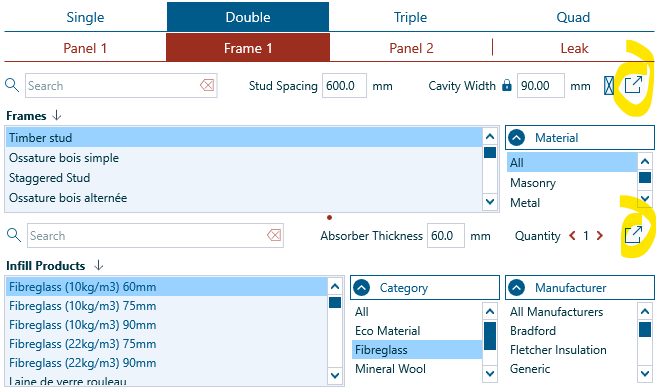
Frames
Selecting the Frame sharing button will open the Frame Share menu:
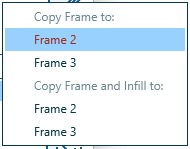
Where a frame is shared, all relevant properties are shared including name, dimensions and acoustic configuration.
There are two different ways to share a frame, which are outlined in the table below.
Item |
Action |
|---|---|
| Copy Frame to | Share a frame arrangement to a different frame. For example, in a Triple model, Frame 1 could be shared to Frame 2. With this option, infill properties are not shared. |
| Copy Frame and Infill to | Share a frame + infill arrangement arrangement to a different frame. For example, in a Triple model, Frame 1 could be shared to Frame 2 and, concurrently, the infill for Frame 1 would be shared to the infill for Frame 2. |
Infill
Selecting the Infill sharing button will open the Infill Share menu:
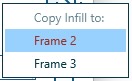
Where an infill is shared, all relevant properties are shared including name, density and flow resistivity.