Licence Key Updates#
Updating a Hasp key license is a two-stage process.
-
Step One
Extract a license file, called a Client 2 Vendor or c2v file, from the Hasp key and send the file to the Distributor for updating.
-
Step Two
The Distributor will send back an update file, called a Vendor 2 Client or v2c file, which should be loaded back onto the Hasp key.
Recommended operating system
It is recommended to carry out the update key process on a Windows 10 or Windows 11 PC.
Extracting a c2v File#
-
Plug the INSUL Hasp key into the PC
-
Open INSUL and select Help > About
Find the Help Menu

-
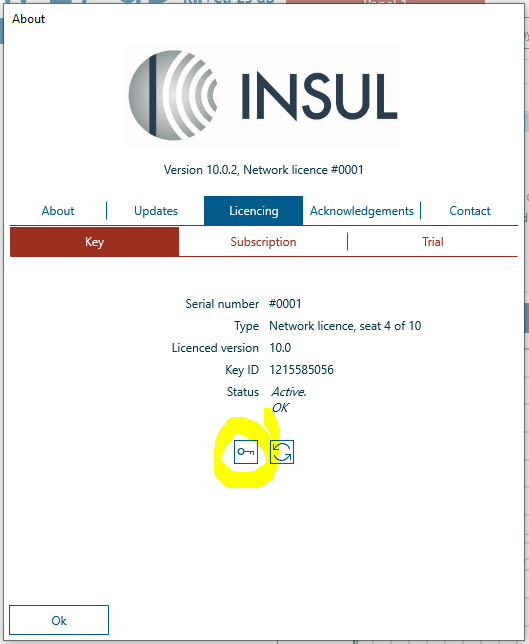
From the About window select Licencing > Key
-
 Click on the Key button to show update steps
 -
Select Step 1: Save Key Information to File

Extracting a c2v file, INSUL 9.0.23 and earlier
For INSUL version 9.0, release 23 and earlier, the Key button is on the front of the About window.

-
An Open Dialog will appear allowing the c2v file to be saved. By default the save name will include the serial number of the licence and the current date.

-
email the c2v file to the distributor
Loading a v2c File#
After a c2v file has been emailed to the distributor, they will email back a v2c file.
-
Save the v2c file locally on your PC.
-
Plug the INSUL Hasp key into the PC
-
Open INSUL and select Help > About
Find the Help Menu
-
From the About window select Licencing > Key
-
Click on the Key button to show update steps
-
Select Step 2: Update Key from v2c file

Loading a v2c file, INSUL 9.0.23 and earlier
For INSUL version 9.0, release 23 and earlier, the Key button is on the front of the About window.

-
Follow the prompts and select the v2c file emailed from the distributor.
-
If the update is successful, INSUL will show:
Key has been updated
If the update is not successful, please contact the distributor for further advice.
The v2c file can also be loaded from the Sentinel Admin Control Center