Leaks#
Gaps in Walls and Ceilings#
Leaks can be modelled in walls and ceilings. To include a leak in an INSUL model:
- From the INSUL Construction tabs, select the Wall tab or the Ceiling tab.
-
From the INSUL Panel tabs select Single, Double or Triple as required, and then select the Leak tab.

-
Check Enable to add a leak to the model.
Two types of leaks may be modelled, apertures and slits.
Calculation models#
Two different procedures are available to calculate the sound reduction through the leak, referred to here as the Gomperts and Mechel methods.
The calculation procedure may be changed from the Settings window, by selecting the Calculation > Leaks tab.

Info
The Gomperts calculation is a relatively simple but robust routine for empty leaks and is recommended. Gomperts is the default calculation routine when INSUL starts up.
The Mechel calculation can model empty leaks as well as leaks which include some absorptive material in the cavity and/or with one or both ends of the leak sealed with a simple mass. The Mechel routine is useful for understanding the effect of insulation and sealant on sound reduction performance of the leak. However, in general, the results seem to be less consistent than the Gomperts method. For this reason, the Gomperts routine is recommended for general modelling.
Apertures#
Select the Leak button on the Panel tab and check Enabled to include a leak in your model.

Slit and Aperture tabs will appear. Select the Aperture tab to model an aperture. The radius of the circular aperture and its depth may be set in the edit boxes.
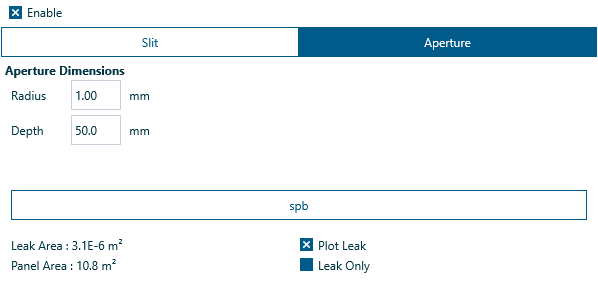
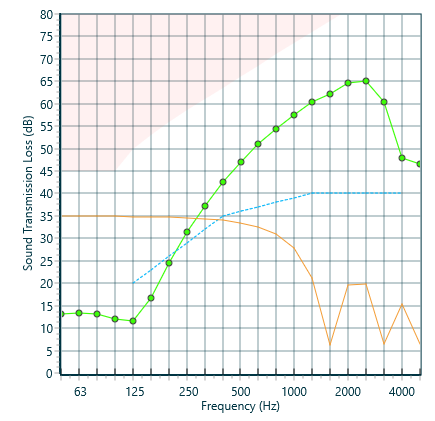
When only the Plot Leak checkbox is selected, INSUL calculates the composite sound reduction of the building element with the effect of the leak included. The composite sound reduction is displayed in the INSUL Table and is plotted as the green line on the INSUL Graph.
Checking the Plot Leak checkbox on the Aperture page will include a plot on the chart of the sound reduction through the leak alone. This is plotted as an orange line as shown below.
Checking the Leak only box on the Aperture page will model the sound reduction through the leak only. This leak sound reduction will be displayed in the Table and plotted as the green line on the Chart.
Note
With the Leak Only box checked, changes to the building element will not effect the plotted sound reduction.
Aperture position
The sound reduction through a leak is different depending on whether the leak is in the middle of a building element, or at its edge where one building element intersects another.
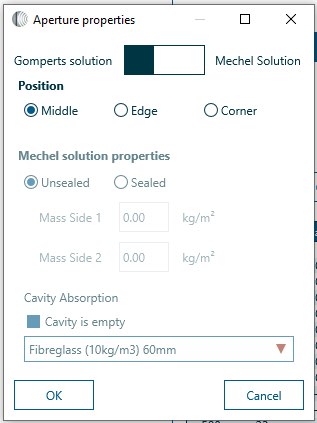
Click on the Properties button on the Aperture page. The leak may be modeled as being in the middle of the partition, at an edge where two building elements intersect, or in a corner where three building elements intersect:
Sealing and cavity absorption
Aa noted above, there are two calculation routines available to model an aperture, the Gomperts and Mechel routines. When the Mechel routine is selected, the Mechel aperture properties section of the Aperture properties window will become active:
Check Sealed to allow the ends of the leak to be modeled as being sealed, for example with silicon sealant. The mass of the sealant on each side of the leak may be set in the edit boxes Mass Side 1 and Mass Side 2. Setting the mass of each of these to zero is the same as checking the Unsealed radio button.
Cavity absorption may be modeled in the leak by deselecting the Cavity is empty checkbox, and choosing from the Cavity Absorption drop down menu. Details of the cavity absorption materials can be modified in the Materials Editor.
Slits#
Select the Leak button on the Panel tab and check Enabled to include a leak in your model.
Slit and Aperture tabs will appear. Select the Slit tab to model a slit. The height, length and depth of the rectangular aperture may be set in the edit boxes.
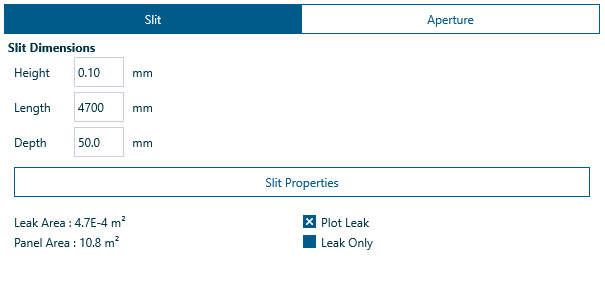
When the leak icon is clicked, INSUL calculates the composite sound reduction of the building element with the effect of the leak included. The composite sound reduction is displayed in the INSUL Table and is plotted as the green line in the INSUL Graph.
Checking the Plot Leak box on the Slit page will include a plot on the chart of the sound reduction through the leak alone. This is plotted as a orange line as shown below.
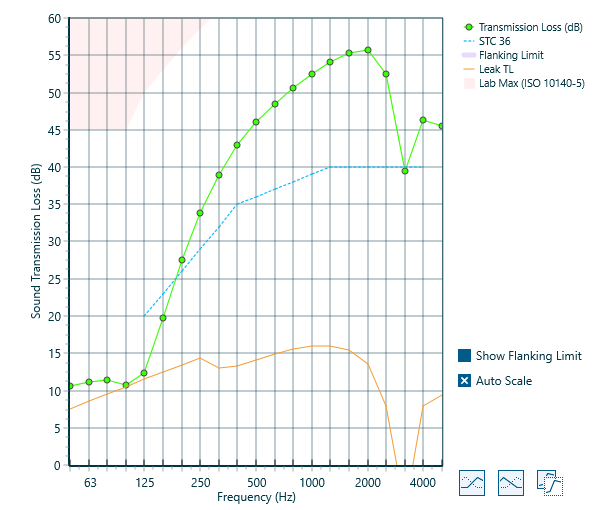
Checking the Leak only box on the Slit page will model the sound reduction through the link only. This leak sound reduction will be displayed in the Table and plotted as the green line on the Chart.
Note
With the Leak only box checked, changes to the building element will not effect the plotted sound reduction.
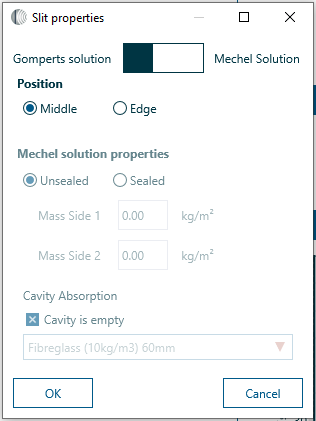
Slit position
The sound reduction through a leak is different depending on whether the leak is in the middle of a building element, or at its edge where one building element intersects another.
For slits, the leak may be modeled as being in the middle of the partition, at an edge where two building elements intersect.
Modeling tips#
Doors
- Model the leak as a slit and set the leak length to the full perimeter of the door
- No seals: leak height = 1.2 mm
- Weather stripping: leak height = 0.5 mm
- Magnetic seals: leak height = 0.2 mm
Timber framed walls
- No acoustic seal around the perimeter of the wall: Model the leak as a slit and set the leak height = 0.6mm
Note
Assumes the leak is around the full perimeter and therefore that the leak length = perimeter of wall. Note if part of the perimeter is sealed then reduce the length of the leak accordingly.