Auralisation#
The Auralisation tool can be used to listen to a simulation of the effect of predicted sound reduction values.
The Auralisation tools are available on the main INSUL window. They are located beneath the INSUL Construction Tabs.
Item |
Notes |
|
|---|---|---|
 |
Play Source side | Listen to a simulation of the sound in the source room |
 |
Play Receiver side | Listen to a simulation of the sound in the receive room. The audio is adjusted to estimate the effect of the predicted sound reduction values. |
 |
Save Auralisation to WAV file | When either the source side or receive side audio is playing, the auralisation can be saved to a WAV file (16 bit PCM, sample rate 44100 Hz). |
Auralisation is available with INSUL predictions of airbourne sound insulation: Wall, Ceiling, Glazing and Porous models.
It is not available for Impact Sound Pressure Level or Rain Noise predictions: Floor or Roof models.
Limitations: Playback system and background noise
It is important to be aware that the accuracy of the simulation will depend on the frequency response of the audio reproduction (playback) system and the background noise level.
For example, demonstrating differences in low-frequency performance with headphones may be quite ineffective.
Likewise, trying to listen to the effect of very high-performance walls may be impossible if the background noise in the listening space is not very low.
Audio Sources#
A range of different audio source files can be chosen for auralisation.
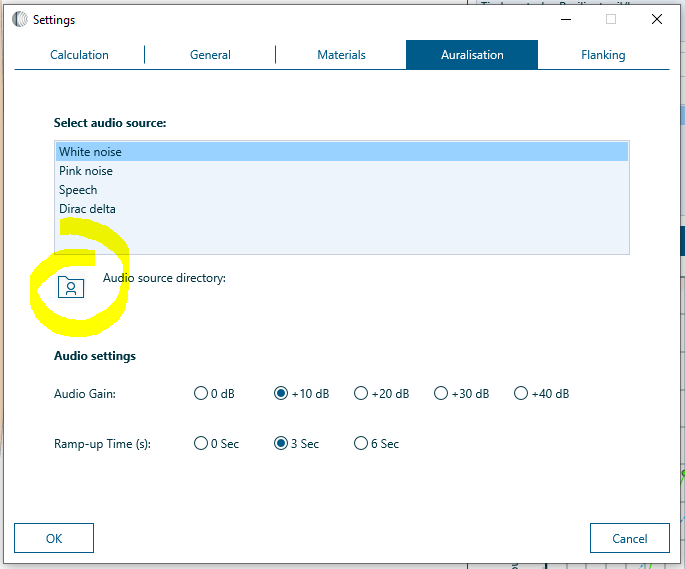
The audio can be changed from the Settings window: Settings > Auralisation > Select audio source.
INSUL provides four built-in audio sources1:
- White Noise
- Pink Noise
- Speech
- Delta Dirac
More WAV files can be added to the audio list by selecting an Audio Source Directory that contains the relevant WAV files.
WAV file formats
INSUL supports WAV files with a 44100 Hz sample rate.
Other audio files types and sample rates are not currently supported.
All built-in audio sources 16 bit PCM format.
When the Audio Source Directory is changed, INSUL identifies all WAV files in the directory and adds files to the audio list if they have any of the following formats:
- 16 bit PCM
- 24 bit PCM
- 32 bit float
All audio files saved by INSUL are 16 bit PCM format.
Audio Gain#
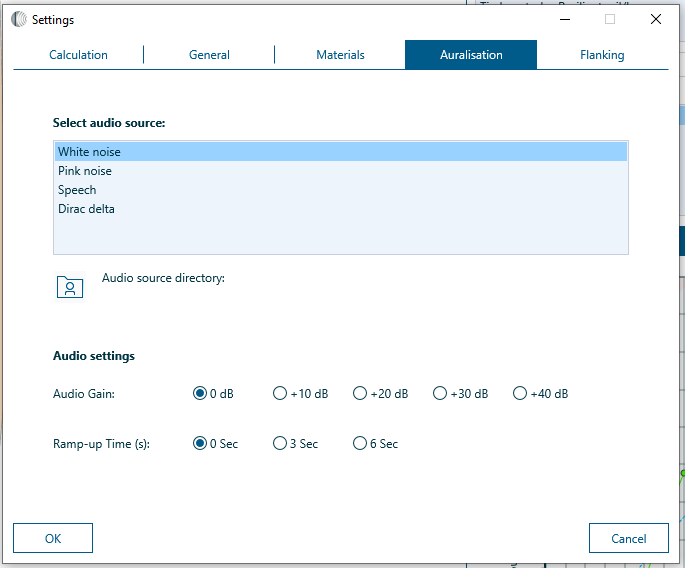
Audio Gain can be used to amplify the simulated audio in the receive room.
This can be helpful for auralisations of systems with high sound insulation values where it may be difficult to hear the comparatively low sounds for the receive room (particularly if the listening environment has high background noise levels).
The Audio Gain can be changed from the Settings window: Settings > Auralisation.
Audio Gain is only used for auralisation to the receive room.
Ramp-up Time#
The Ramp-up Time controls the amount of fade when audio is played.
The Ramp-up Time can be changed from the Settings window: Settings > Auralisation.
Ramp-up Time |
|
|---|---|
| 0 sec | Audio is played with fading |
| 3 sec | Audio fades in and out with a 3 second fade duration |
| 6 sec | Audio fades in and out with a 6 second fade duration |
-
The default INSUL audio sources are bundled as part of the INSUL app. This means that they are always available, regardless of what Audio Source Directory is selected. ↩