Item Details#
Materials#
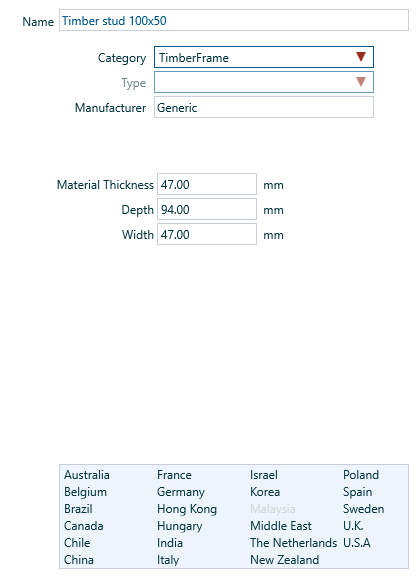
The Materials editing panel shows the name, category, type and properties for the selected material.
Each of these items can be changed directly from the editing panel.
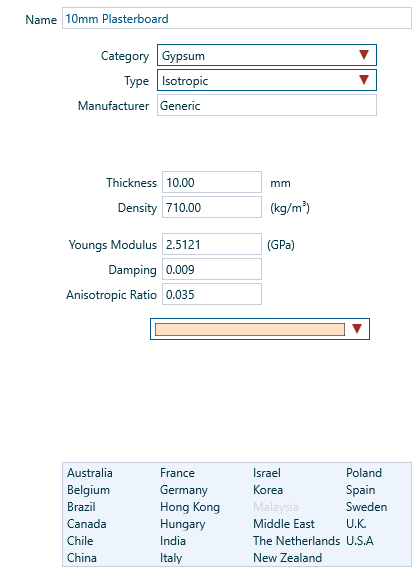
Additionally, the editing panel shows the region settings. Click on the regions list to edit the region settings.
Profile#
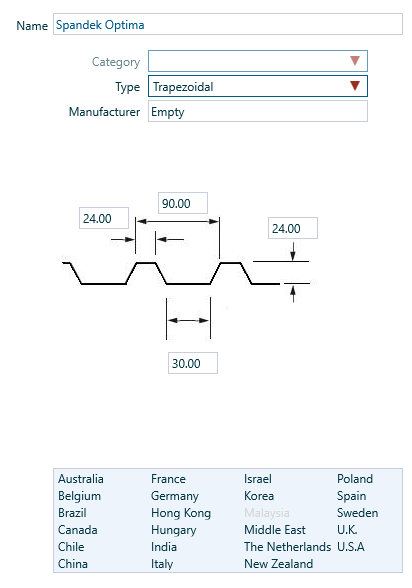
The Profile editing panel shows the name, type and dimensions for the selected profile.
Each of these items can be changed directly from the editing panel.
How does INSUL use Profiles?
INSUL uses a Profile to save the dimensions for a particular profile shape.
A Profile by itself does not include any information about the panel that is profiled. For example, it does not include information about the mass or thickness of the panel.
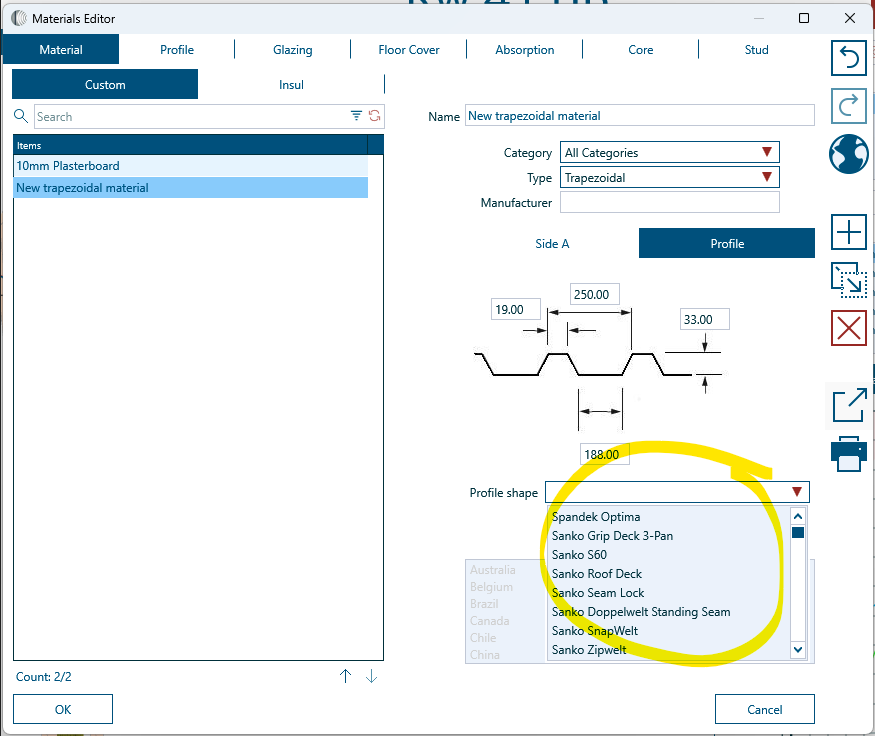
A four-step process can create an Custom material with a profile:
- In the Materials Editor, create a new Custom material
- Change the Type to either Corrugated, Trapezoidal or CompositeSteelFloor.
- With the Type change in Step 2, INSUL will show a Profile tab for the material.
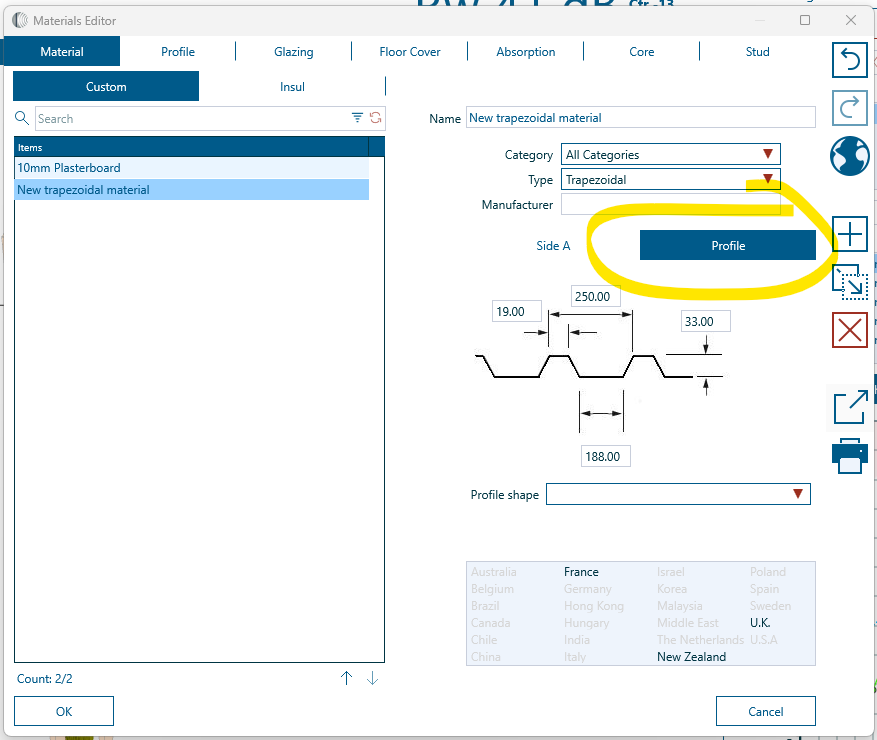
- Add in the relevant profile dimensions or select an existing profile from the drop down menu as shown below.
Glazing#
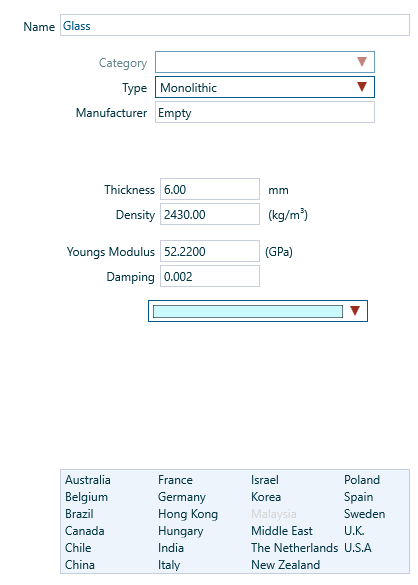
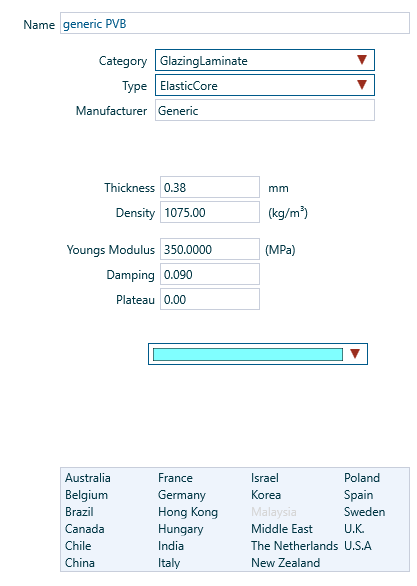
The Glazing editing panel shows the name, category, type and properties for the selected glazing material.
Each of these items can be changed directly from the editing panel.
Floor covers#
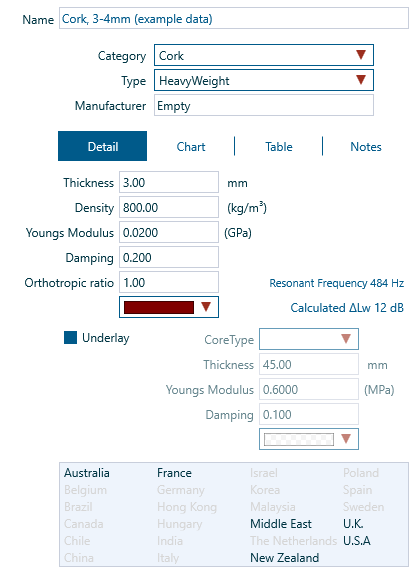
The Floor Covers editing panel shows the name, category, type and properties for the selected cover.
Each of these items can be changed directly from the editing panel.
Absorption#
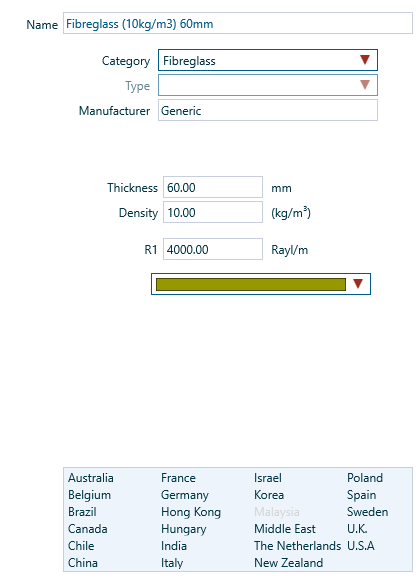
The Absorption editing panel shows the name, category and properties for the selected infill material.
Each of these items can be changed directly from the editing panel.
Core#
The Core editing panel shows the name, category, type and properties for the selected core material.
Each of these items can be changed directly from the editing panel.
Studs#
The Studs editing panel shows the name, category and dimensions for the selected stud type.
Each of these items can be changed directly from the editing panel.