Adding and Editing materials#
The examples in this section demontrate how to add and edit materials in the INSUL lists.
Example A: Copy and edit#
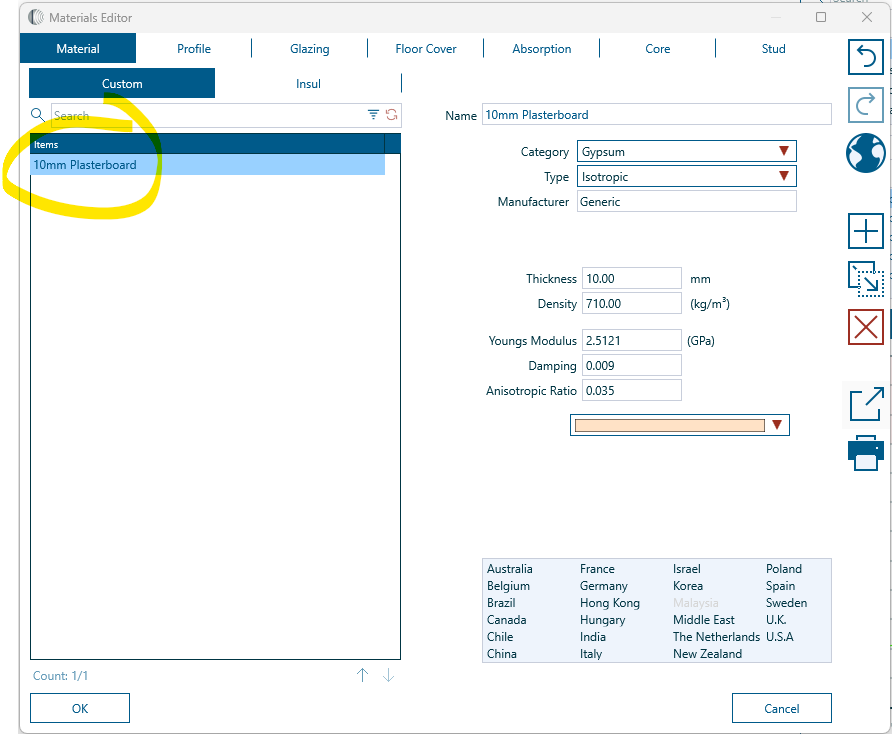
By default, the INSUL lists include one item in the Materials > Custom list ~ 10 mm Plasterboard.
Let's create a new material for 13 mm Plasterboard, that is based on the existing 10 mm Platerboard material.
-
Open the Materials Editor.
-
Navigate to the Materials tab, Custom list.
-
Select the 10 mm Plasterboard material.
-
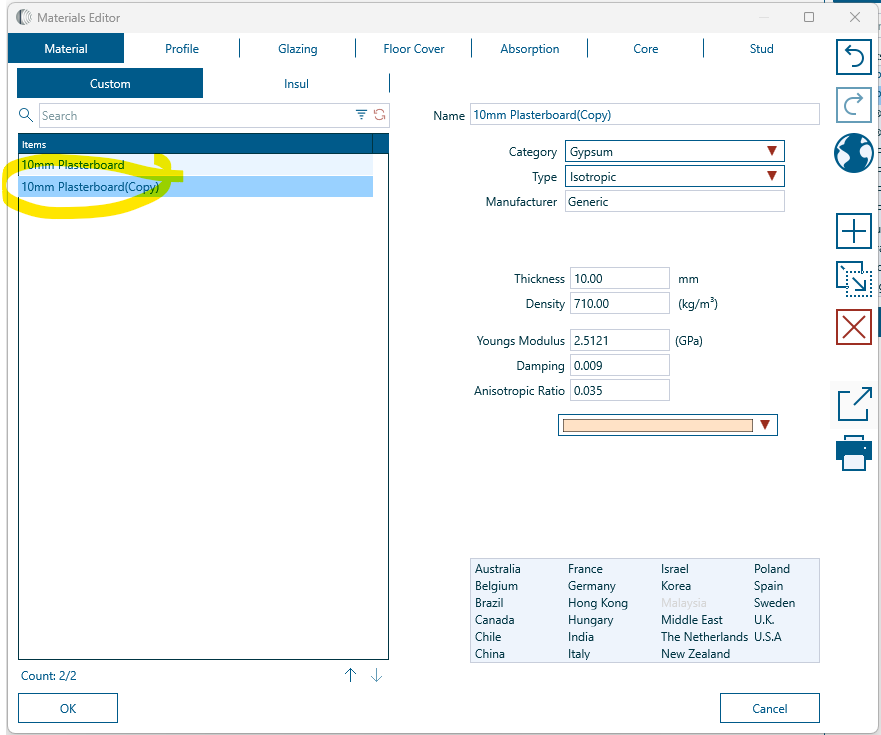
From the Toolbar, select Copy Item to Custom List. This creates a new material in the Custom list called 10 mm Plasterboard (Copy)
-
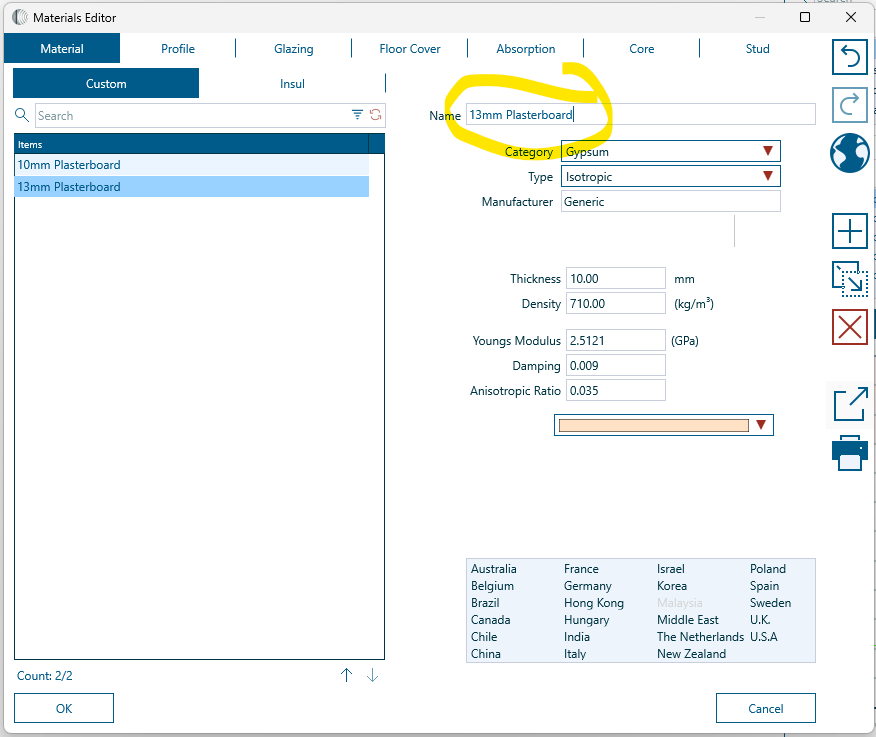
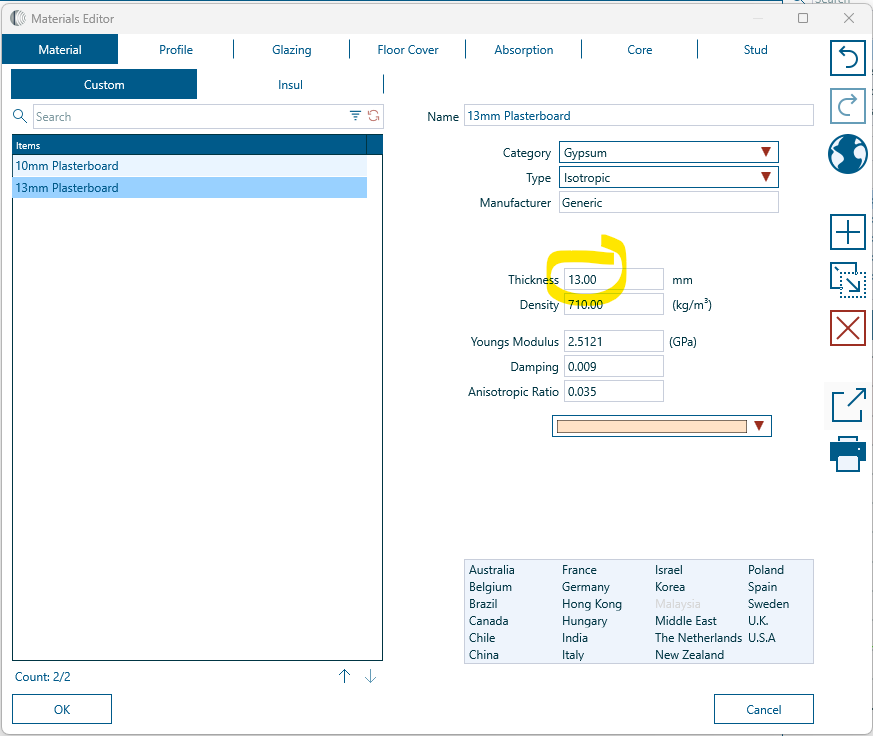
Edit the name of the new material to read 13 mm Plasterboard
-
Edit the thickness value, changing from 10 to 13
-
Select OK to save changes and close the Materials Editor.
-
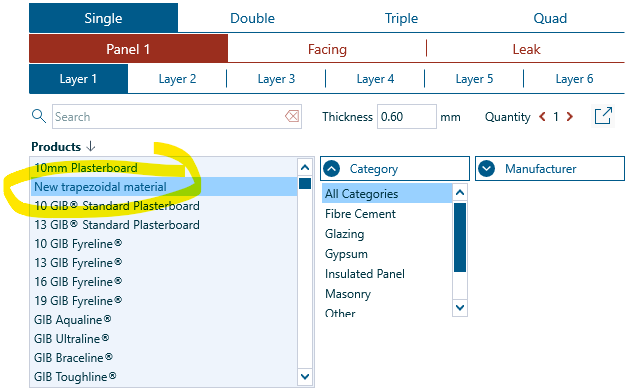
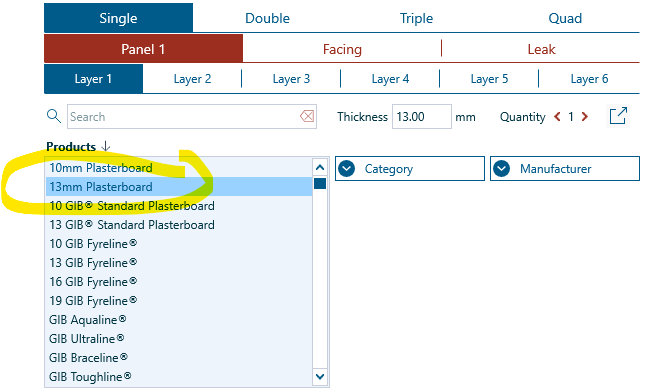
When INSUL returns to the main window, the new material is shown in the Materials lists.
Example B: From scratch#
Let's create a new trapezoidal steel material. Here are the steps.
-
Open the Materials Editor.
-
Navigate to the Materials tab, Custom list.
-
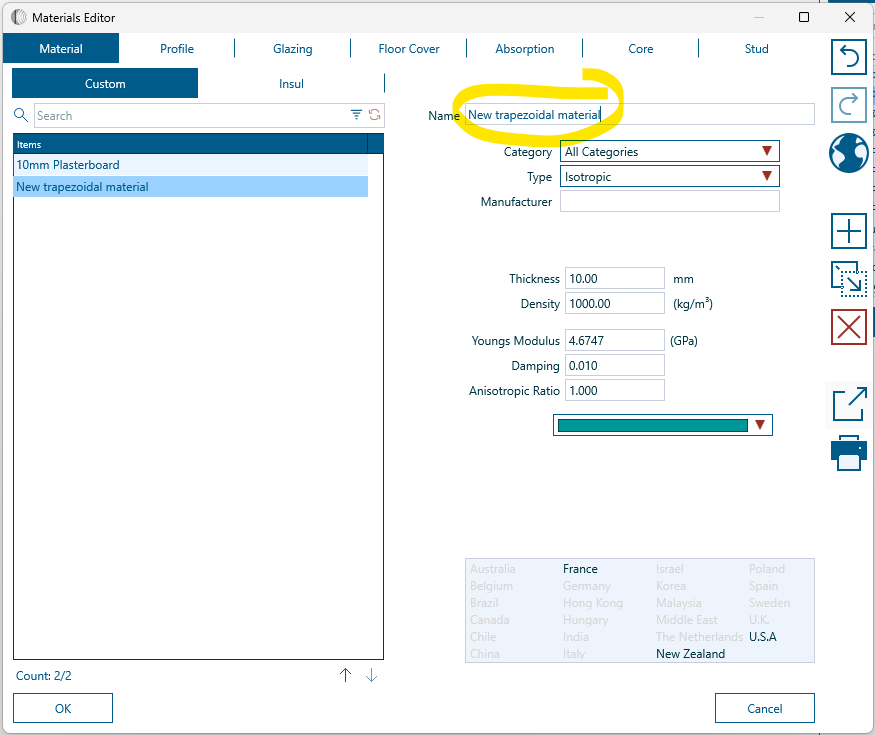
Select Add Item. INSUL will create a new, generic material in the Custom list. The material is pre-poulated with a default name, type and material properties.

-
Edit the name of the new material.
-
Chose the category, manufacturer and type for the material.
For this example, the trapezoidal type is chosen.
When the type is changed, the editing panel is updated to show material properties on the Side A tab. The profile dimensions for hte trapezoidal material can be managed from the Profile tab.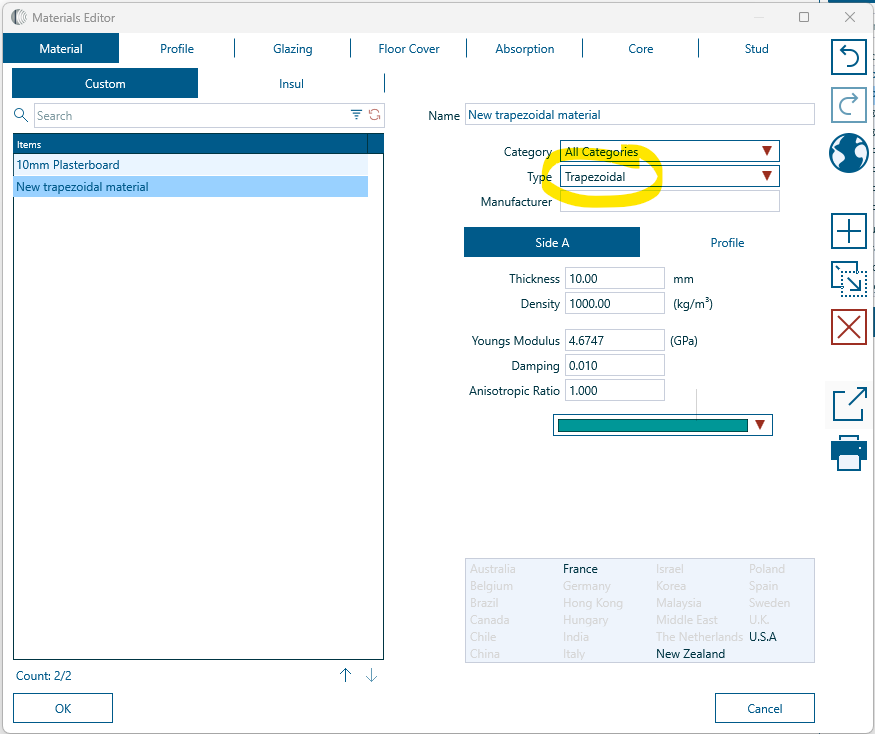
-
Update the material properties. For this example, the thickness, density, Youngs Modulus and damping values are updated to represent steel.

What are the material properties?
If the material properties are not known in advance, then:
-
It is sometimes possible to source the information direct from the manufacturer or supplier.
-
Alternatively, the properties of other similar materials in the INSUL list can be reviewed to estimate suitable values.
-
Acoustic text books can also be a useful source of indicative values for properties of common building materials.
-
-
Select the Profile tab and update the profile dimensions. The dimensions can be added directly to the value boxes, or an existing profile shape can be selected from the drop down list.

-
Select OK to save changes and close the Materials Editor.
-
When INSUL returns to the main window, the new material is shown in the Materials lists.